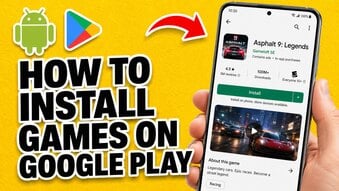
Google Play Store is one of the most important apps on an Android phone. It helps you search for apps, download games, install updates, manage subscriptions, and keep your apps organized. If Google Play Store is outdated, you may see download errors, update problems, slow loading, or missing app information.

In most cases, Google Play Store updates automatically in the background. You do not need to download it manually every time. However, if the Play Store is not working correctly or you want to check for the latest version, there are several simple methods you can try.
This guide explains how to update Google Play Store on Android in 2026, how to check the current version, and what to do if the update does not work.
Does Google Play Store Update Automatically?
Yes, Google Play Store usually updates itself automatically. It is different from normal apps because it is part of the Google services system on many Android devices. You may not always see it updating like other apps, but Google can push Play Store updates in the background.
That means you normally do not need to search for Google Play Store inside Google Play and tap Update. In many cases, the update happens quietly.
However, automatic updates may be delayed if:
-
Your internet connection is weak.
-
Your phone has low storage.
-
Google Play Services is outdated.
-
Your Android version is too old.
-
The Play Store cache has problems.
-
The device does not fully support Google services.
How to Check Your Google Play Store Version
Before updating, you can check which version you currently have.
Follow these steps:
-
Open Google Play Store.
-
Tap your profile icon in the top right corner.
-
Tap Settings.
-
Tap About.
-
Look for Play Store version.
In the About section, you may also see an option to update Play Store. If an update is available, your phone may begin downloading it. If your Play Store is already up to date, you will see a message telling you that.
Method 1: Update Google Play Store from Settings
This is the easiest method for most users.
Open Google Play Store, go to Settings, then About, and tap the Play Store version or update option. If there is a newer version available for your device, Google Play will start updating.
After the update, close the Play Store and open it again. If the interface looks the same, do not worry. Play Store updates often improve performance and security in the background without making big visual changes.
Method 2: Update Google Play Services
Google Play Store depends on Google Play Services. If Google Play Services is outdated or not working correctly, the Play Store may also have problems.
To check it, open Settings on your Android phone, go to Apps, and search for Google Play Services. Depending on your device, you may be able to open its app details page and update it through Google Play.
If Google Play Services is not working, you may notice issues like:
-
Apps cannot sign in with Google.
-
Google Play Store does not load.
-
Downloads stay pending.
-
Apps cannot update.
-
Google account sync fails.
Updating Google Play Services can often fix Play Store problems.
Method 3: Clear Google Play Store Cache
If Google Play Store will not update or keeps showing errors, clearing the cache may help. This does not delete your apps. It only removes temporary files that may be causing problems.
To clear cache:
-
Open Settings.
-
Go to Apps.
-
Find Google Play Store.
-
Tap Storage.
-
Tap Clear cache.
-
Reopen Google Play Store.
If the problem continues, you can also clear the cache for Google Play Services and Download Manager. Be careful with Clear data because it may reset some app settings.
Method 4: Restart Your Phone
This sounds simple, but it often works. If Google Play Store is stuck, pending, or not showing updates, restart your Android phone.
A restart can refresh system services, reconnect your Google account, and clear temporary background errors. After restarting, open Google Play Store again and check whether it works normally.
Method 5: Check Your Internet and Storage
Google Play Store may fail to update if your phone does not have a stable connection or enough storage space.
Check these basics:
-
Switch from mobile data to Wi-Fi.
-
Turn airplane mode on and off.
-
Restart your router if Wi-Fi is unstable.
-
Delete unused apps or large videos.
-
Make sure your phone has enough free storage.
-
Check whether battery saver is limiting background activity.
Even a small Play Store update can fail if the phone is low on space or has unstable internet.
Method 6: Update Your Android System
If your Android system is very old, Google Play Store may not update properly. Some newer versions of Google apps require newer Android versions or updated security components.
To check for system updates:
-
Open Settings.
-
Go to System.
-
Tap Software update or System update.
-
Install any available update.
-
Restart your phone.
The exact menu name may be different depending on your phone brand. Samsung, Xiaomi, OPPO, Vivo, Motorola, and other brands may organize update settings differently.
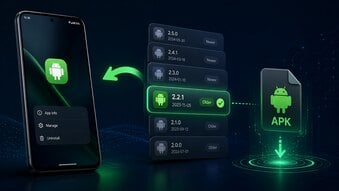
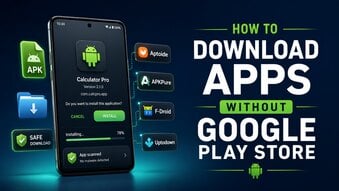
Should You Download Google Play Store APK Manually?
Some websites offer Google Play Store APK downloads. This can be useful in special cases, but beginners should be careful. Google Play Store is a system-level app, and installing the wrong APK version can cause errors.
Manual APK installation may be considered when:
-
Google Play Store is missing.
-
The current Play Store version is broken.
-
The device supports Google services but did not update correctly.
-
You know the correct version for your Android device.
However, if your phone already has Google Play Store, it is usually better to update it through the Play Store settings or system updates. Manual installation should not be the first option for beginners.
Common Google Play Store Update Problems
Here are some common issues users may see:
-
Play Store update stuck
-
Google Play Store not opening
-
Downloads stuck on pending
-
Apps not updating
-
Play Store says something went wrong
-
Google account not syncing
-
Play Store keeps closing
-
Update option not showing
Many of these problems can be fixed by checking internet, clearing cache, updating Google Play Services, restarting the phone, or freeing storage space.
Conclusion
Updating Google Play Store on Android is usually simple because it often updates automatically. If you want to check manually, open Google Play Store, go to Settings, tap About, and look for the Play Store version or update option.
If Google Play Store is not updating, start with simple fixes: check your internet, free up storage, clear cache, restart your phone, and update Google Play Services. For most users, these steps are enough to fix common Play Store problems.
Manual APK installation should only be used carefully and only when necessary. For beginners, the safest approach is to use the built-in update option, keep Android updated, and let Google Play Store manage itself whenever possible.